SINGING STREAM SAVIOR · LIVE CONTROL DESK

Let the app remember the stream chores

Prepare and control BGM, karaoke tracks, Reserve, OBS set lists, and lyrics from one workspace. Keep your attention on singing and chat instead of rearranging windows between songs.

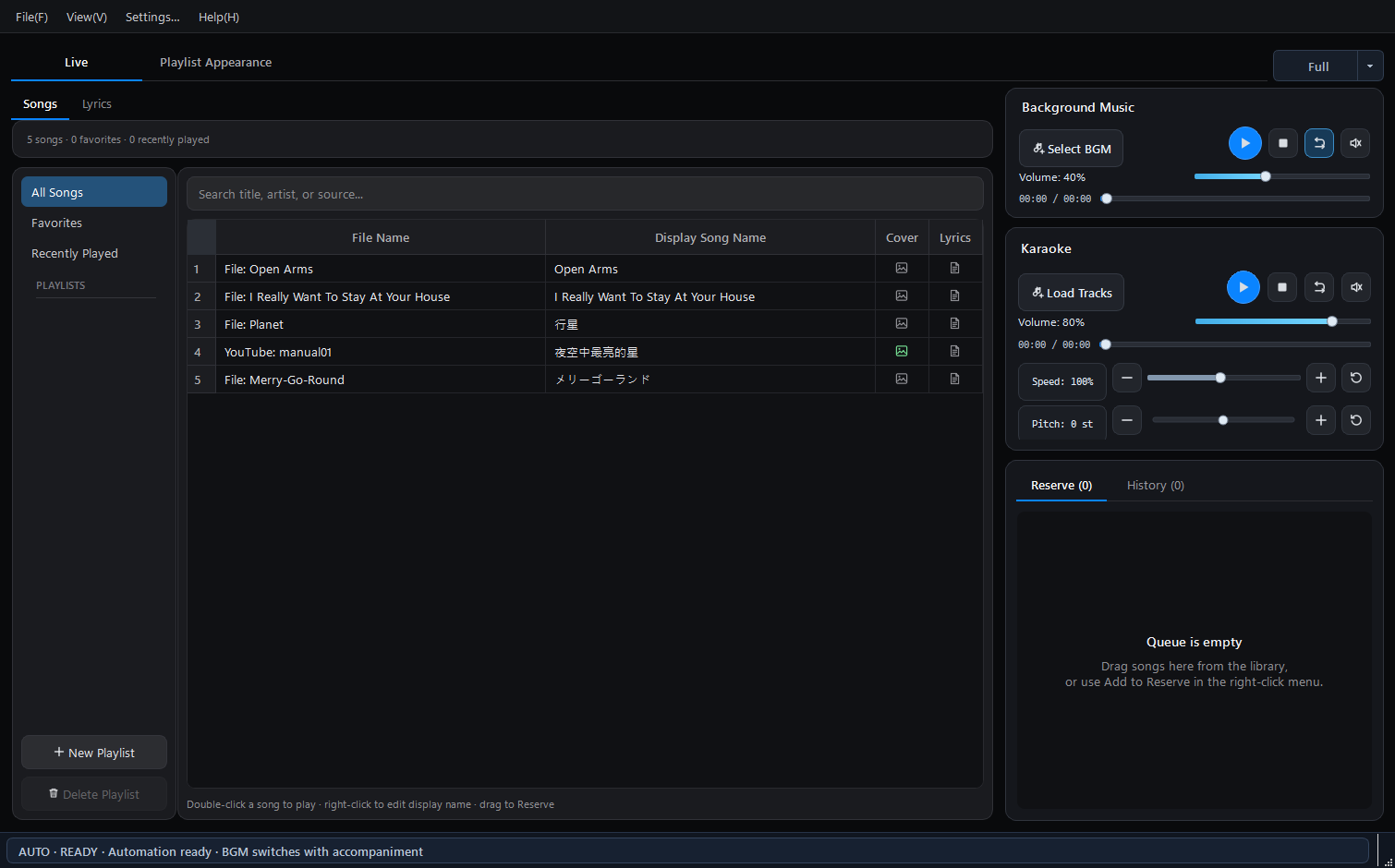
English Full Mode with the library, BGM, karaoke player, and Reserve
Song selection, playback, and stream visuals in one workspace.

WORKFLOW DEMO · 01:44

See the complete path from Singing Stream Savior to OBS

The video moves through playback, set-list themes, synchronized lyrics, and the final OBS output. Video data loads only after you choose to play it.

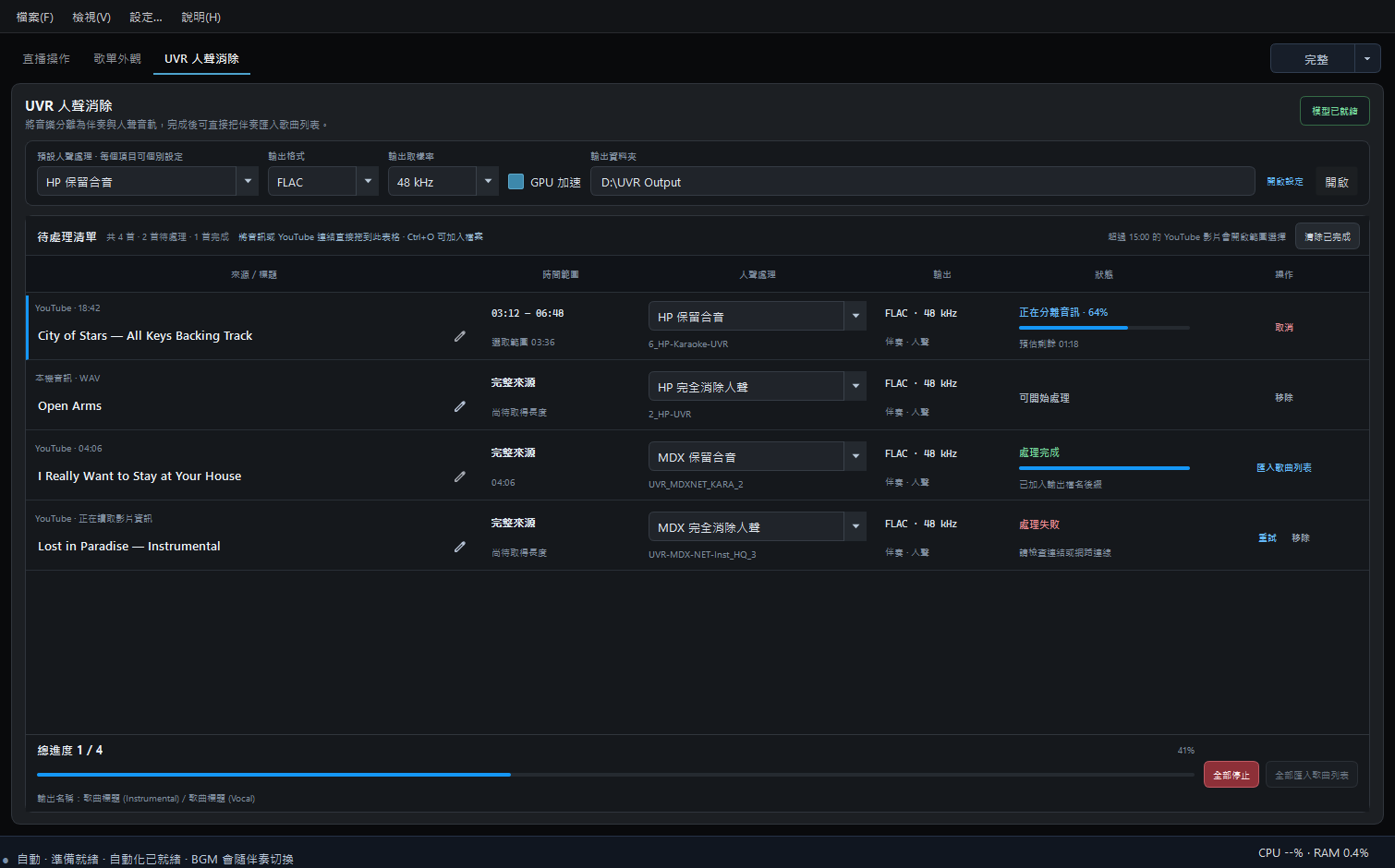
The app and its OBS output are shown side by side. The interface in the video is Traditional Chinese.

Why was it made?

It began with the small mistakes that happen during singing streams

I often forgot to turn BGM off before singing, turn it back on afterward, or add the song I had just finished to the set list shown in OBS. None of these tasks is difficult, but they are easy to miss while singing, talking to chat, and finding the next track.

Singing Stream Savior was built to handle that rhythm. First choose and start your BGM. Starting karaoke then pauses that BGM automatically, and stopping or finishing the karaoke track resumes it. The set-list overlay also follows song status without retyping every title in OBS.

BGMPlays between songs
Start karaoke
KaraokeBGM pauses
Pause or finish
BGMPlayback resumes

From setup to live output

Preview the result in Singing Stream Savior, then use it in OBS

The screenshots below use the English interface and real 2.0.3.1 controls with isolated sample data.

01
Choose a set-list themePlaylist Appearance
English Playlist Appearance page automatically demonstrating Transparent Black v2 with a long Set List

The automatic demo cycles through songs and a long Set List so you can see Now Singing, Reserve, and Next On in motion.

02
Check synchronized lyricsLyrics preview
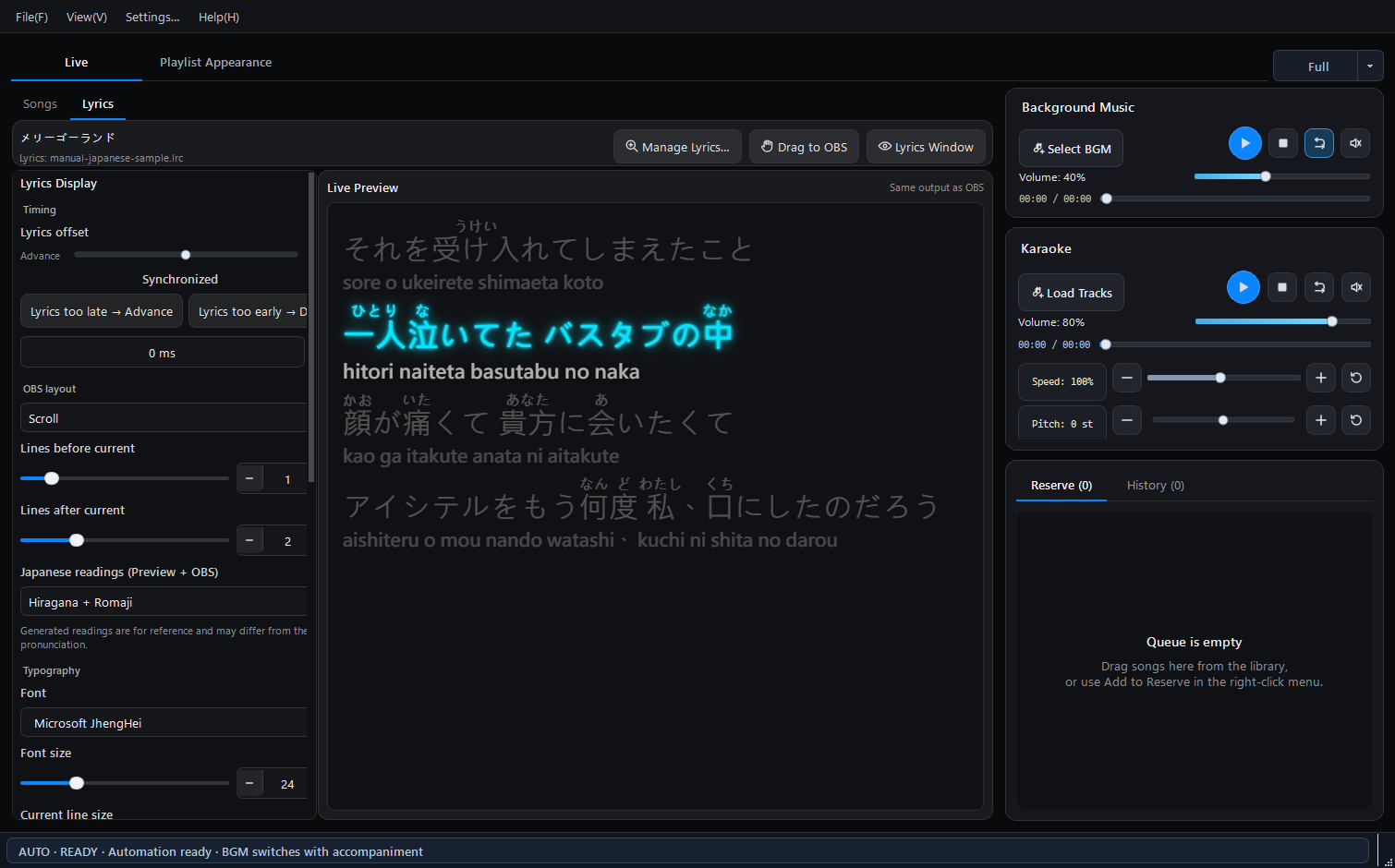
English Lyrics page showing timing controls, line-count sliders, and synchronized Japanese sample lyrics

Confirm the current line, font, color, highlight, and timing while the karaoke track is playing.

03
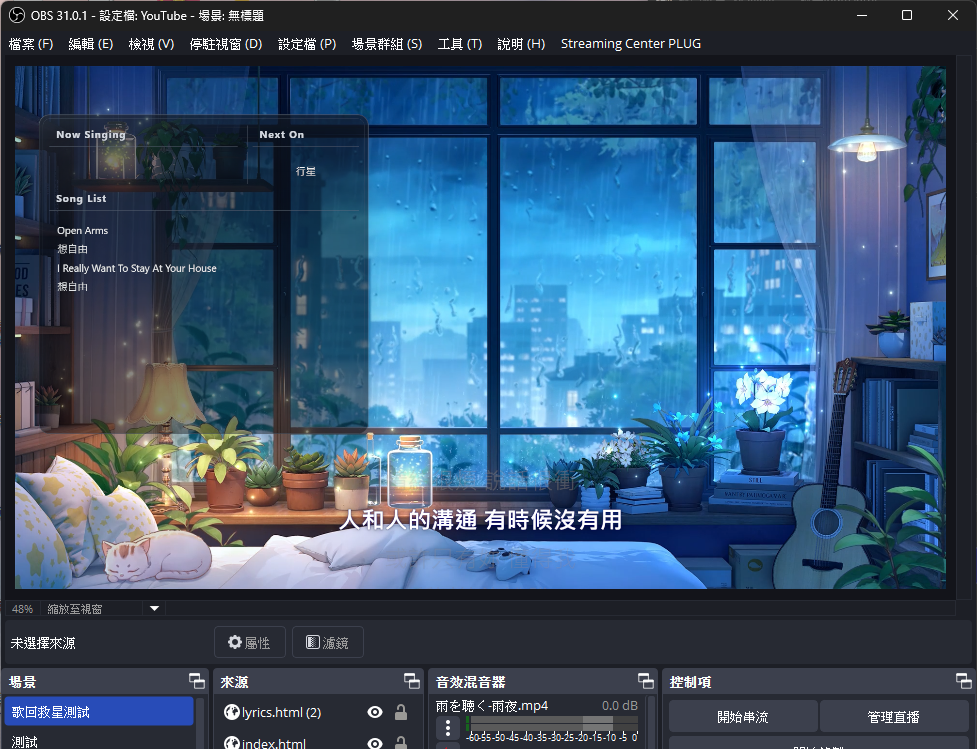
Confirm the OBS resultLive output
OBS showing a transparent set list and synchronized lyrics over a stream background

The set list and lyrics are independent sources in OBS, so each can be resized, cropped, and positioned for your scene.

Core features

Designed around the real flow of a singing stream

Preparing songs, performing, and updating OBS are parts of one continuous workflow.

Playback handoff

BGM and karaoke work together

First choose and start your BGM. Starting karaoke pauses or fades it automatically; stopping or finishing the karaoke track resumes the BGM that was playing.

Library & Reserve

Plan ahead without losing flexibility

Organize songs and Reserve, play a backing track immediately, or create an unaccompanied item for a cappella and self-accompanied performances.

OBS set list

Change themes, not text after every song

Choose Default, transparent, Card, CD, or illustrated themes, inspect every state in the automatic demo, then drag the overlay into OBS.

Lyrics

Read them yourself or show the audience

Search or import synchronized lyrics, open a movable Lyrics Window, or create an OBS lyric overlay. Japanese supports Hiragana and Romaji, and Korean can show romanization.

Backing sources

Local files and YouTube backing tracks in one player

Your backing track may be a vocal-removed, self-recorded, or downloaded local file—or a version you just found on YouTube. Singing Stream Savior supports both, so you do not have to switch between a media player and browser.

Workspace

Full, Compact, and Mini modes

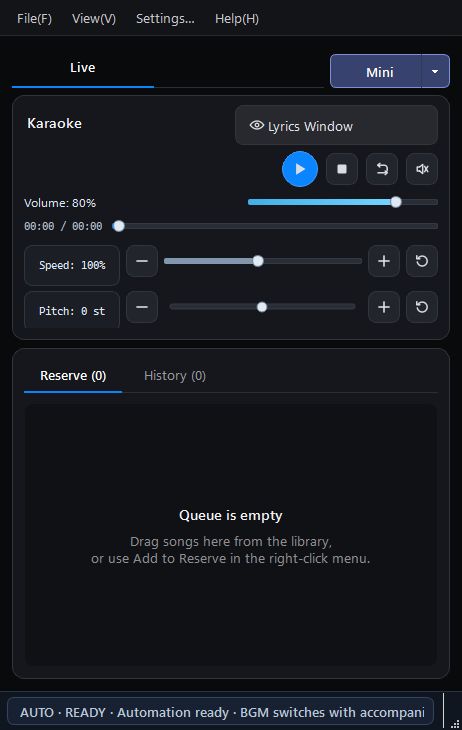
Prepare in Full Mode, then reduce the window for the stream. Mini Mode keeps karaoke, Reserve, History, and the Lyrics Window close at hand.

Ready to begin

Import one song and complete a test playback

The guide begins with extracting the app, launching it, and creating your first project.

Open the user guide